
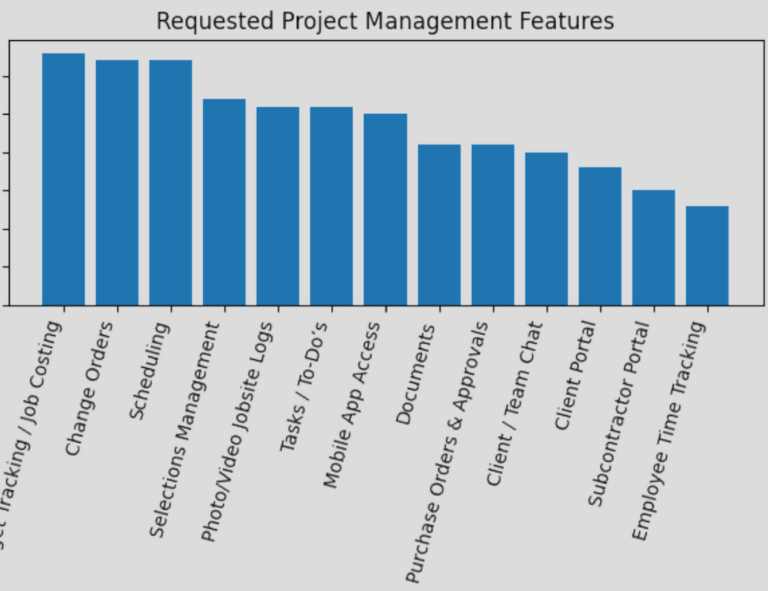
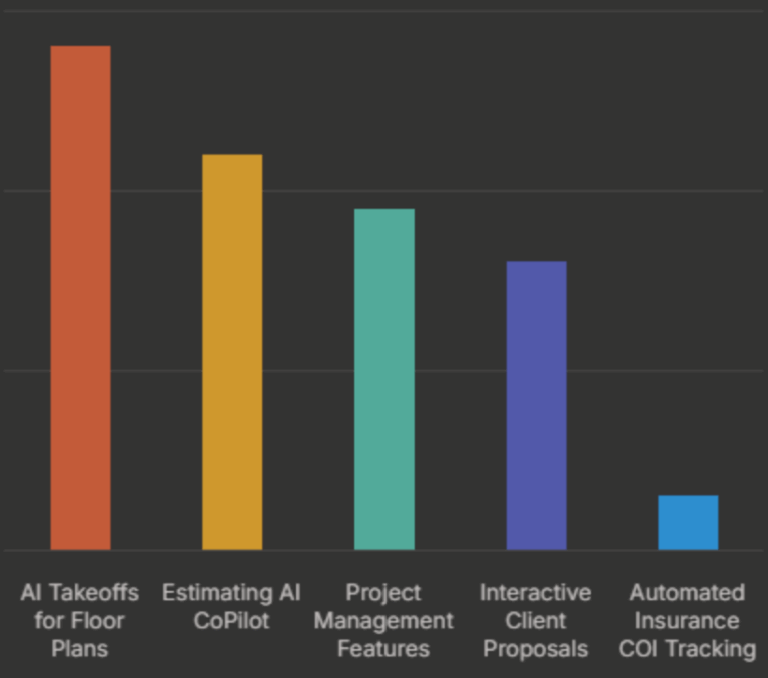
We’ve recently grown our engineering team to 12 powerhouse developers—so we can move faster than ever and build what this industry has been waiting for.
Our mission is to deliver the next generation of construction software:
simple, jobsite ready, with AI powering a seamless homeowner experience.
Imagine software that keeps your jobs running smoother, cuts out the busywork, and helps you delight your customers at every step. That’s what we’re on a mission to deliver.
Over the next few months, we’ll be revealing the first pieces of our biggest expansion yet.
 Keep an eye out for the waitlist Get in early, test-drive it, and help shape the platform that could transform the way construction gets built.
One of our most requested features is here.
The new “Versions” feature allows you to save multiple versions of an estimate for any project.
Click the “Version Control” button (lower right corner) to capture a new version, switch between past saved revisions, and easily save multiple versions of your estimate.
We added a labor hours calculator to make it easier to calculate man-hours in your estimate.
Select the Man Hours option from the measurement list to access this new tool.
Display total hours and labor rate OR lump sum amount before adding to the spreadsheet. Check it out!
Link a new measurement to an existing line item (to save time, the new measurement takes on the same properties such as wall height which can be easily modified at time of creation).
Simply right click the measurement icon in the spreadsheet and choose “Link New Measurement“
This will make it easy to measure different ceiling heights, multiple roof slopes, etc. within a single line item. Without having to create the measurement from scratch and manually link it to the line item each time.
Perfect for insulation, drywall, roofing, and other measurements that often change height, width, or pitch.
For example: measure the 10ft ceilings on the main level for drywall, then link a new measurement to add 8ft ceilings in the basement to the wall measurement. So a single line item will show the total drywall quantity across all levels.
Framing takeoffs just got easier.
The system can now automatically generate a list of quantities for each joist length.
This will generate a list of lengths and the quantity of each length of joist. Joists with the same cut length will be grouped together.
–the new Rounding property allows you to round each joist to
none (exact length)
1ft (round up to nearest 1ft)
2ft (most typical… round up to nearest 2ft even cut length)
–the new Minimum Cut Length property allows you to set the minimum cut length
ex: setting this to 8ft will ensure that 5ft 6in pieces are ordered in 8ft lengths
–right click any individual joists to adjust the ply
–right click the joist area to change joist direction
Framing takeoffs just got easier.
The system can now automatically generate a list of quantities for each beam/post/header length when using the Line Segment tool.
Useful for:
–Headers
–Beams
–Posts
–Ridge/Hip/Valley Beams
This will generate a list of lengths and the quantity of each length of beam. Beams with the same cut length will be grouped together.
–the new Rounding property allows you to round each beam to
none (exact length)
1ft (round up to nearest 1ft)
2ft (most typical… round up to nearest 2ft even cut length)
–the new Minimum Cut Length property allows you to set the minimum cut length
example: setting this to 8ft will ensure that 5ft 6in pieces are ordered in 8ft lengths
–we also added a Hip/Valley Pitch Calculator so you can determine the pitch of the hip/valley beams where two roof slopes meet
We added flexibility to the Allowances report. Now you can choose which Type(s) to display in the report.
Common Types:
–Allowance
–Material
–Labor
–Equipment
This is useful if you just want to output a list of allowances. Or materials. Or Labor. Or a combination of these types (Material + Labor).
How to Access The New Report:
This is also helpful when exporting a list of framing materials.
Check out the “Combine Groups” option, which will generate a list of materials in a quote-friendly format for your building supplier.
Now you can setup multiple options within any line item.
Simply edit the cell and choose “Manage Options” to create a list of line items to choose from.
Example Use Cases:
Framing (select from a list of lengths)
Drywall (select from a list of different sheet sizes)
Siding/Trim (select from a list of different lengths of trim OR different materials such as fiber cement, vinyl, etc)
Sub 1 vs. Sub 2 (select from a list of different laborers, each having different unit prices they charge)
Over the next couple of weeks, we will be adding options to many of our pre-built assemblies and templates.
Let us know if you need help taking advantage of this new feature in your own template
We made it easy to adjust line item costs across all Types OR for a specified type across your entire template/project.
Example Use Case #1:
For higher-end clients that need above-standard allowances for finishes: select Type = Allowances and quickly increase the price of all allowance items.
Example Use Case #2:
For some markets, our standard template may price a typical new construction project at around $200/SF + land, but perhaps you build closer to $300/SF. In this case you can use this feature to quickly adjust line items across your entire template up 50%.
Just make sure each line item is assigned to a Type (the Type can be set at the line item level, group level, or section level).
Before confirming, it will show you the new projected cost of each section and of the project overall
We added a search bar at the top of the spreadsheet, so you can quickly search any term and go to the exact location(s) in the spreadsheet where that term exists.
Now you can search Home Depot’s website for live pricing of any item from a store in your area.
This search takes 3 to 30 seconds since we are scraping the website for the most up-to-date pricing and item information.
Access this feature by clicking on any line item and choosing the “Search Library” feature, then click on the Home Depot tab.
Home Depot prices can be linked to items in your template, so they get refreshed every time a new project is created (when your template is imported into the project).
The future of this feature is to allow you to search any product on any website by saving products directly to your library or project.
This will negate any wait times or the need to scrape websites live, since you will be able to do your own shopping. Stay tuned!
For our remodelers, Rendr added additional parameters it captures in each property scan.
We also now bring in any photos you capture of the space. Photos can be downloaded from the “Property Scan” button on the Project Home page.
You can also import the generated floor plan directly from the Estimate for convenient takeoffs.
The overall workflow to scan a property is now more convenient and streamlined.
Give it a try and let us know what you think about the latest enhancements.
Additional Improvements:
–bid requests: added multi-select of subs/vendors when choosing who to send bids to
–bid requests: add option to add multiple reply-to emails (from Templates & Setup page -> Bid Request Template)
–set the default cost code (for new line items) at section level
–change line item Type for all items in a section
–various bug fixes for a smoother experience
As always please share your ideas & feedback, so we can continue making the platform better.
Hit the chatbot icon (lower right corner) to message us if you need help or have a feature request!
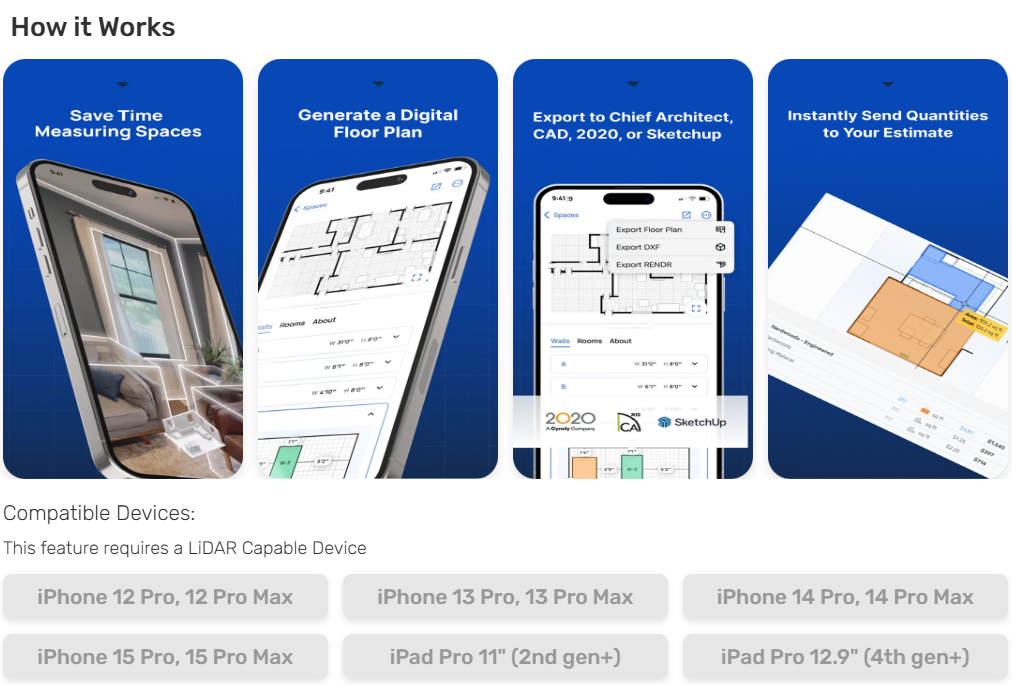
BuilderBid renovation/remodeling contractors can now save time by scanning properties using the Rendr app
–Generate a basic digital floor plan
–Send the as-builts to your draftsman/architect
–Instantly send takeoff quantities to the estimating software
Automatically identify quantify flooring, drywall, LF of cabinets, Door/Window counts, fixture counts, & more
This technology requires a LiDAR capable device such as iPhone Pro or iPad Pro
How to Try it Out:
Go to a Project –> Project Home page –> click “Invite to Scan Property” –> follow the instructions to enter an email and phone number, then we will send you a link to invite you to use Rendr to capture the space. Unlimited scans are included in your plan!
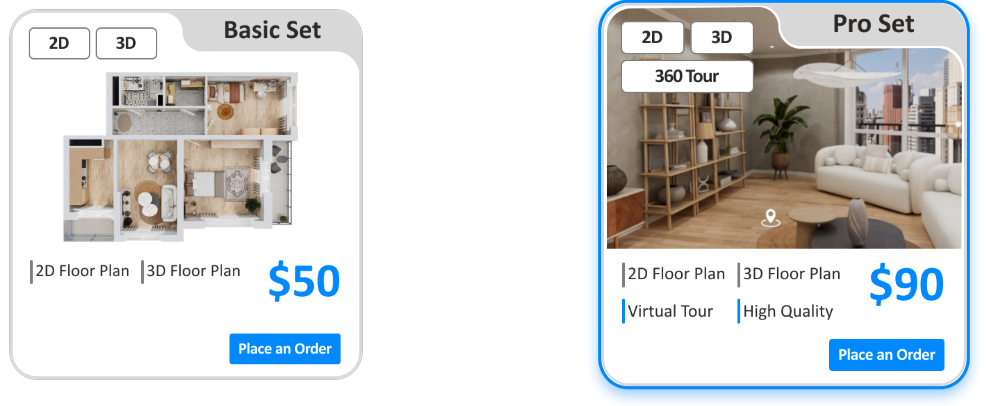
To help your buyers visualize their space, you can now order Furnished Interior Floor Plans & 3D Virtual Tours for any project
Basic Set is $50 for the main level + $25 for each additional level
Pro Set is $90 for the main level + $50 for each additional level
24 Hour Turnaround (AI Generated + Human Checked)
Try it Today:
Visit the Project Home page –> then select “Purchase 3D Virtual Tour”
For those that want to play around with design ideas, our new 3D floor planner is the perfect tool
Create floor plans in 2D/3D
Easily move walls and remodel your space
Design and furnish your client’s dream home
–Start from Scratch
–Start from a Template
–Copy an Existing Project
–Upload a Plan to let AI generate a scaled “digital twin” based on your blueprints (BETA)
Easily drag & drop furnishings, move walls, reposition doors/windows, change colors and textures of design elements, & more
Currently available through the BuilderBid Web App
(iOS/Android Mobile Apps will be added later)
Included with your plan at no additional charge
Click any room and furnish it with AI
The AI Smart Wizard will position furniture, fixtures, cabinets, and more based on the chosen stye
Go from floor plan to fully furnished property in minutes
We revamped how you add markup to your jobs
So you can have clarity on the profit margin for each project
When you finish estimating the job:
–> click the Markup tab (lower right corner)
–> then click Set Markups, Discounts, & Taxes button at the top of this page
For open book (cost-plus) projects:
List any overhead/profit markups as a line item in the estimate spreadsheet ($ or %)
For fixed price (lump sum) projects:
–Choose between fixed price OR fixed price with allowances
–Choose between Markup OR Margin
–Choose whether to Markup Everything OR set the Markup % by Type (labor, material, etc.)
Save time creating projects
We revamped the architecture to speed up plan file uploads when creating a new project
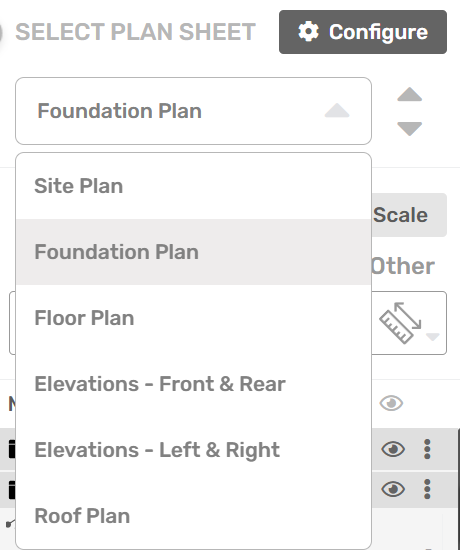
When possible to detect sheet names, we will name your plan sheets automatically
We recently delivered our 500th project through the Estimating Service
Since publicly launching our done-for-you service in March of last year 🚀🎉
Ashley and the team have been hard at work delivering a unique and exceptional experience for builders and contractors who want to
–systemize their business
–delegate estimating duties
–and free up their time
We are excited to continue to grow the estimating team in 2025
GROWING THE TEAM:
Last year, we doubled the size of the software engineering team
We now have 10 full-time developers working on the BuilderBid platform, so we can deliver more of the features you want.
AI UPDATE:
We’ve been working hard on our AI Roadmap and will begin releasing these features in early Q2
AI is a huge focus for us in 2025
To further automate the estimating process and help your clients visualize their final project, we will be releasing several AI capabilities in the very near future including:
–BuilderBid 3D: an AI powered floor plan design and visualization tool
–Property Scanner: scan any property with your phone to generate dimensioned floor plans
(automatically send quantities to the estimate)
–AI Takeoffs: phase I will focus on floor plan analysis
Update in Template:
Make a change in your project that you want to carry over into your template for future estimates?
You can update line items in your template directly from the estimate.
To do this, click the gear icon for the overall group OR a single line item inside the group and then click “Update in Template”.
Add Item/Group to My Library:
Build something from scratch that you want to use again later? Add any item or group to your cost library.
Update Item/Group in My Library:
Update line items in your cost library directly from the estimate.
Additional export reports were added upon request to easily transfer the budget over into those platforms
Using a different tool for project management? Let us know if your platform is not yet listed here.
Don’t forget, you can always export to spreadsheet format
Ready to see everything we’ve been improving? Keep reading!
We added a partial Quickbooks Online integration, so you can quickly move over your budget with just a few clicks
To link your Quickbooks Online account, simply go to the Templates & Setup -> Integrations page
Whether you track the budget by Project, Customer, or Sub-Customer these options are all available
If you need help setting up this integration, please reach out to support via the chat bot (lower right corner)
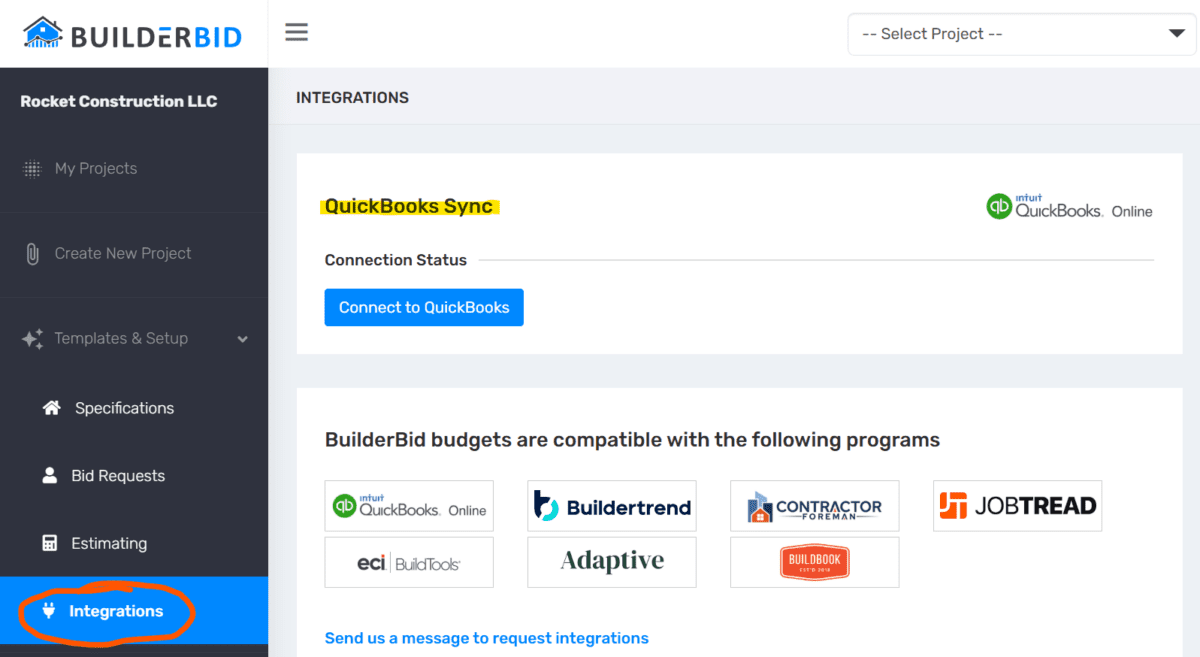
We added a Quickbooks Online integration, so you can quickly move over your budget with just a few clicks
To link your Quickbooks Online account, simply go to the Templates & Setup -> Integrations page
Whether you track the budget by Project or by Customer, both options are available
If you need help setting up this integration, please reach out to support via the chat bot (lower right corner)
We revamped the user experience to make it easy to search the:
–BuilderBid Cost Library
–My Cost Library
–Cost Database (AKA Pricing Assistant)
We have a few more enhancements on the way (such as preview item before adding)
Let us know your feedback and ideas
The measurements in the right window are now organized into folders for easy navigation
Manage measurement visibility at the folder level or overall
Measurements will automatically organize themselves into folders as the takeoffs are launched from the spreadsheet
You can manually add or remove folders + drag & drop to move measurements between folders
Capture screenshots of your takeoff measurements and plan markups
Add, Delete, and Resequence the screenshots for easy review
Then Download a PDF of the takeoff screenshots for easy sending
Note: this feature will be in BETA for the next 1-2 weeks as we improve the U/ and squash any bugs
Now you can include specific line items in the bid requests sent to subs/vendors
Choose whether you want the subs to be able to see the Quantities (or not)
Choose whether you want to ask the subs to input costs for each line item OR just an overall total
For linear measurements, we added two useful features to help you zero-in those quantity takeoffs
1. Right Click any linear measurement to “Add Opening”
Then specify the height of the door/window
Then click on either side of the opening
This will remove the opening square footage from the measurement quantity
2. Right click any point in a linear measurement to “Break Line” at any point
Two new plan markup tools are now at your disposal
Previously we added the Legend Tool, Text Box, and Highlighter
Now you can also utilize the Arrow tool to draw arrows on the plans as well as the Bubble tool
Set the line width, color, and drag & drop these shapes to the position of your choice
In the proposal feature, you can Save any view as a Favorite for quick access
Find the views you use the most and favorite them. Switch between views on the fly.
Now you can place Cost Codes into Cost Code Groups (sometimes called Cost Categories)
This additional hierarchy adds flexibility to organize cost codes into groups from the Proposal feature
Check out the new views in the Proposals feature (Summary View)
Assign or Modify a Cost Code-to-Cost Code Group assignment from the Templates & Setup menu -> Estimating -> Cost Codes tab
Note: our team can set these groups up for you, just reach out to support via the chat bot (lower right corner)
The Copy Link feature allows you to send a URL to your client, so they can fill out the specifications document themselves
Clients can click through to select options, add notes, or choose their preferred feature & finishes
You can lock the specs from editing OR generate a new URL at any time
We also added an option to Hide Rows Not Filled Out, so you can exclude line items that may not apply
Sometimes measurements are hard to find or spread across multiple sheets, now you can find them with ease
Right click the measurement icon in the spreadsheet to view linked measurements
Click any measurement in this window to navigate to the exact plan sheet where that measurement is located